

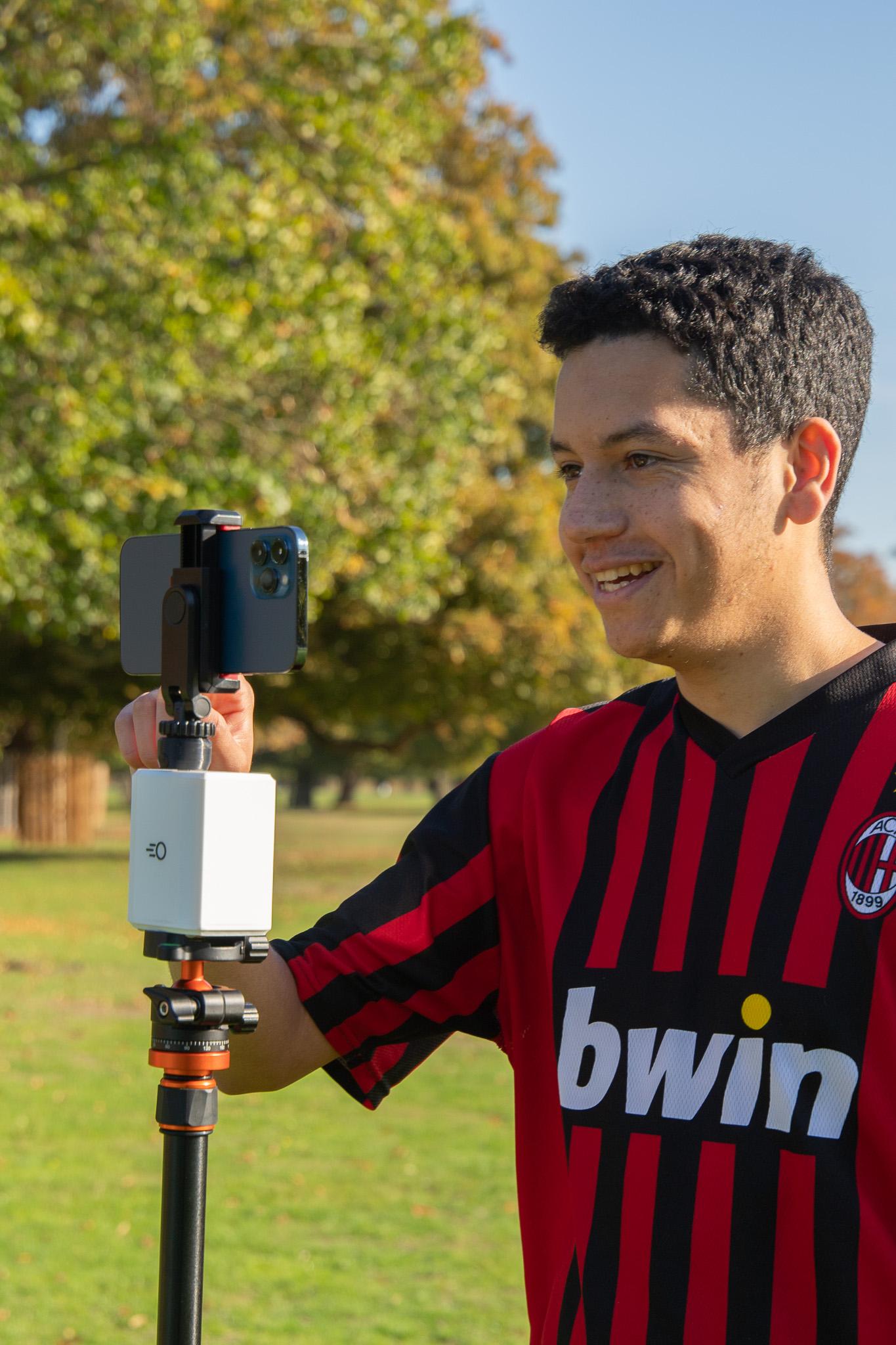
Choose your setup
Pitchwise records with a phone on a tripod. How you hold that phone is up to you.
- Any tripod — clip in a phone running the Pitchwise app and record a fixed, wide view.
- The Pitchwise Mount or a gimbal — the camera tracks play automatically. Clip in, press record, and walk away.
Recording on a plain tripod with no mount? Point your phone at the pitch, then jump ahead to Run your pre-match checks.
Using the Mount for the first time? Read the safety and usage guide before your first game.
Pick your spot
Arrive around 15 minutes before kick-off so you are not rushing. Where you put the tripod matters more than any setting in the app.
- Set up on the halfway line, as high as you can get.
- Check both goals and both touchlines fit in frame.
- Keep the sun behind the camera to avoid glare.
- Wipe the lens — a smudged lens ruins an entire match.
Set up the tripod
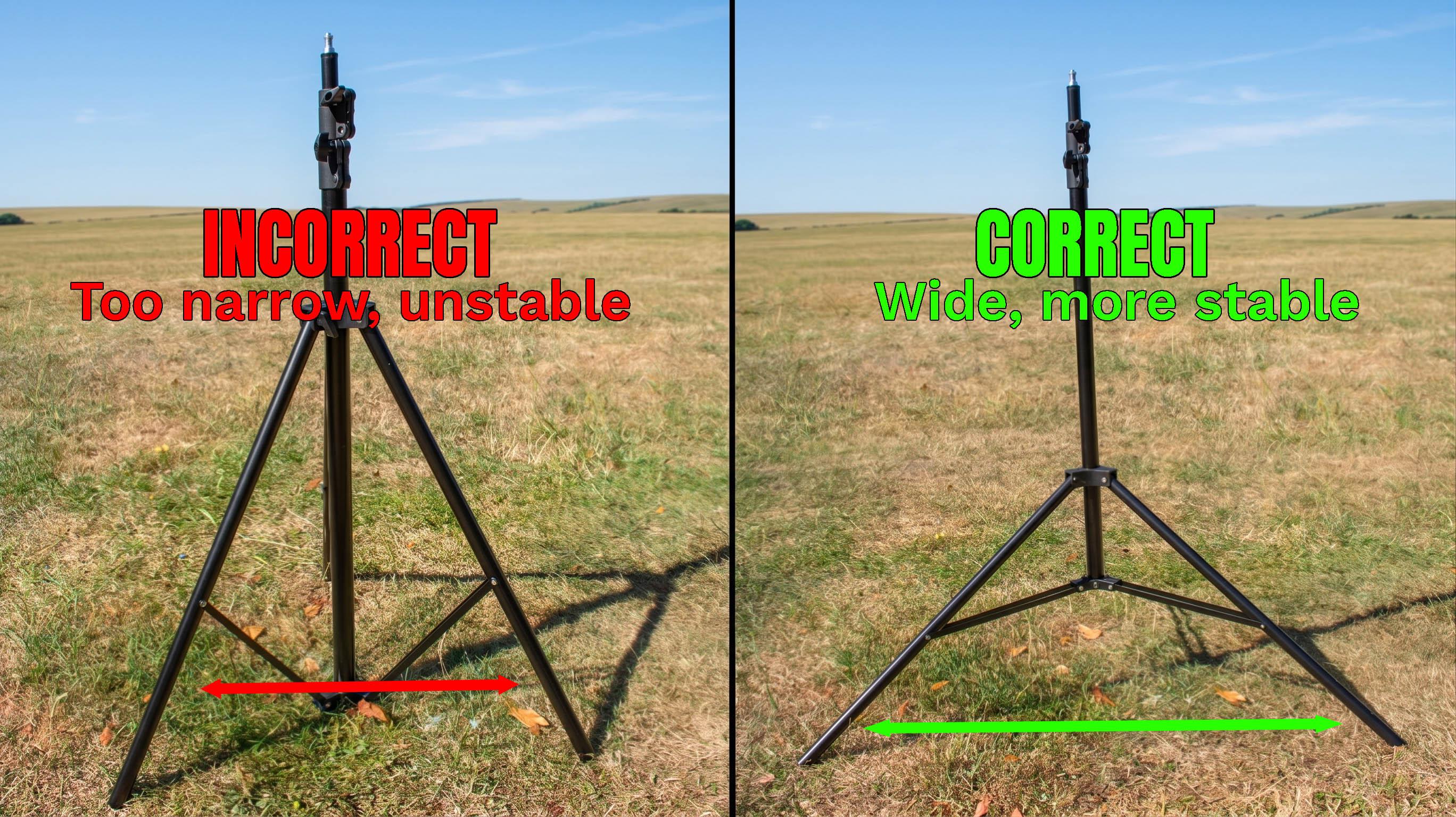
Unscrew the latch on each leg, pull the legs out to full length, then spread them as wide as they will go. A wide stance is far more stable and much harder for wind to tip over.
Tighten every leg screw before you put any weight on it. In windy conditions, weigh the tripod down or peg it into the ground.
Finally, unscrew the centre pole and raise it to roughly eye height for now — enough to work comfortably while you attach everything.
Attach your camera
Pick the equipment you are using:
Take the Mount out of its case. Unscrew the base of the phone clamp, slide it into the top of the Mount, then screw it back down. Give it a gentle tug to check it is properly seated.
Screw the Mount onto the top of the tripod until it is firmly attached. Do not over-tighten — forcing it can snap the tripod screw.
Open the Pitchwise app and tap Record in the bottom navigation bar.
Press the red button on the side of the phone clamp and pull it open wide. Sit your phone inside, matching the orientation shown on screen, then close the clamp so the phone is held tight.
Connect to your mount
Follow the on-screen instructions in the app: tap Connect to Mount and select your device. The app confirms once it is paired.
Set the pitch boundaries
The app walks you through marking out the pitch so it knows where to track. Confirm the centre first, then the left edge, then the right.
Never turn the mount by hand. On a gimbal, use the joystick to pan left and right. On the Pitchwise Mount, loosen the tripod's tightening screw slightly and rotate the tripod pole instead.
Run your pre-match checks
A 60-second check now saves a lost recording later.
- Phone charged, or plugged into a power bank for a full match.
- Enough free storage for the whole game.
- Do Not Disturb on, so calls cannot interrupt the recording.
- If it is wet or windy, secure the tripod and protect the phone.
Start recording
Open the fixture you created and start recording just before kick-off. If you are using a mount, you may see it begin tracking straight away.
- Record a few seconds and check the framing before the whistle.
- Reposition if players are being cut off at either end.
- Confirm the app is showing an active recording state before you walk away.
Leave it running through the match
Once it is recording, leave it alone. There is no need to stop and start between phases of play.
- Keep recording straight through half-time.
- Check on it briefly at the break to confirm it is still running.
- Do not manually reposition the mount while it is operating.
Stop recording and let it upload
At full time, stop the recording in the app.
- Keep the app open while the footage uploads.
- Wi-Fi is faster, so finishing the upload back at the clubhouse is fine.
- Do not delete the local file until the upload has confirmed.